Canonical URLs: SEO Best Practices, Common Issues, and How to Fix Them
Canonical URLs are the main versions of pages that search engines index and rank in search results when multiple URLs load the same or very similar content. Having the proper canonical URL strengthens the ranking potential for the page you want users to find. This guide explains how canonicalization works, how to use canonical tags correctly, when to choose alternatives to canonical tags, and how to ensure Google consistently selects your preferred URLs.
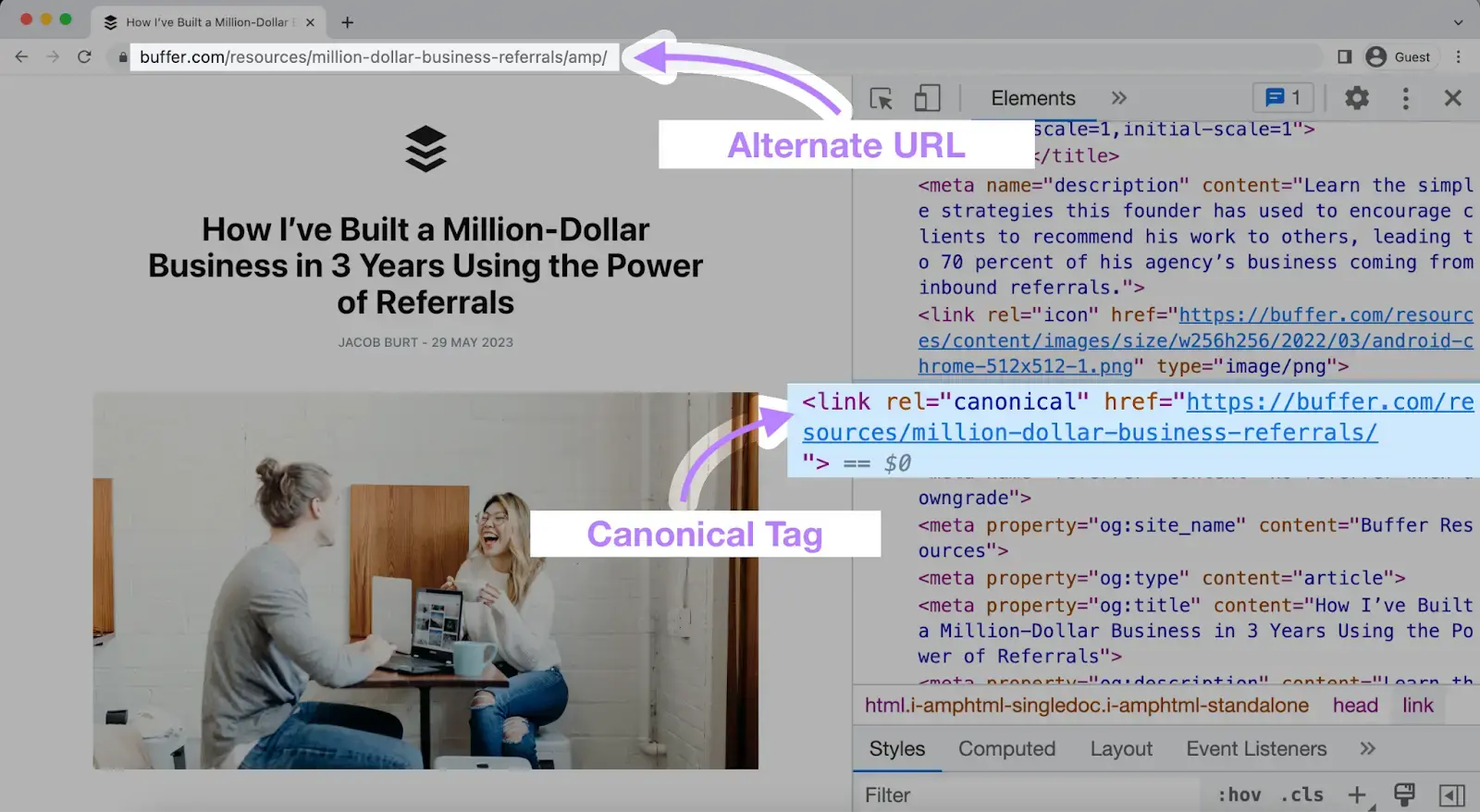
What Is a Canonical URL?
A canonical URL is the preferred version of a webpage that search engines index and show in search results when multiple URLs lead to the same or very similar content.
For example, both of these URLs may display the same blog page:
Canonical URL:
https://example.com/blog/
Duplicate URL:
https://example.com/blog/?page=1
You can guide Google’s choice by using canonical tags and other signals. If those signals conflict or Google believes a different version better serves users, it may still select a different canonical URL than the one you declared.
How Canonicalization Works
Canonicalization works by selecting one canonical URL to use for indexing and ranking from a set of duplicate or near-duplicate URLs.
There are several signals you can rely on to indicate to Google which URL you prefer as the canonical (just be aware Google can still choose a different page as the canonical version):
- Protocol (HTTPS vs. HTTP)
- Use of redirects
- rel="canonical" tags
- Which URLs are included in the sitemap
Duplicate URLs might still be crawled, but they rarely appear in search results unless a specific context—such as device type or region—makes them more relevant.
Common Scenarios That Create Duplicate URLs
Many sites generate duplicate URLs unintentionally, often through these common causes:
- Protocol variants: HTTP and HTTPS versions of the same page
- Domain variants: www and non-www versions of the same page
- Trailing slash differences: Versions of the same page with and without a final slash (e.g., /page vs. /page/)
- URL parameters: Tracking, sorting, or filtering parameters (e.g. ?utm_source=email, ?sort=price)
- Session IDs: Temporary identifiers added during user sessions
- Device-specific URLs: Separate mobile URLs like m.example.com and example.com
- Pagination: Content is split across different pages but each page is highly similar (e.g. /blog vs. /blog?page=1)
Understanding which scenarios apply to your site makes it easier to apply canonicalization correctly.
What Is a Canonical Tag?
A canonical tag is an HTML element that tells search engines which URL is your preferred version for ranking when multiple pages contain the same or very similar content.
Search engines use canonical tags as one of a handful of signals to decide which page to index and show in search results.
The canonical tag belongs in the <head> section of your HTML and looks like this:
<link rel="canonical" href="https://example.com/preferred-url-here/" />
How Canonical Tags Work
Canonical tags work by clearly identifying the version of a page you want to rank when duplicates exist.
If example.com/product/blue?sort=price is a duplicate and shows the same content as example.com/products/blue, you'd place this tag pointing to the main URL in the head section of the duplicate URL as well as in the head section of the main URL:
<link rel="canonical" href="https://example.com/products/blue" />
This tells search engines to treat the non-filtered URL as the canonical version and consolidate all ranking signals to that page.
What Self-Referencing Canonical Tags Are
A self-referencing canonical tag is a canonical tag that points to the main page’s own URL.
Every canonical page should include a self-referencing canonical tag—even if it has no obvious duplicates.
Google's John Mueller has confirmed that self-referencing canonicals clarify your preferred URLs. These tags make canonicalization more predictable, especially when other signals (redirects, protocol, and inclusion in sitemaps) don’t all align.
Pro tip
Use Semrush's Site Audit to identify duplicate content, missing canonical tags, or multiple canonical tags. A site-wide crawl helps catch issues that are easy to miss when checking pages manually.
Why Use Canonical Tags?
Using canonical tags is one of the clearest ways to tell search engines which version of duplicate or similar pages you want to be indexed and ranked.
When you use canonical tags, it allows you to influence:
- Which URL appears in search results: Google uses canonical tags as a signal of which URL to show in search results. This keeps alternates out of search results and prevents keyword cannibalization (i.e., when multiple pages compete for the same terms and harm each other’s rankings).
- How link equity is consolidated: Canonical tags help direct all link equity to your preferred page version, even when you have backlinks that point to alternate versions.
- Simplify analytics and reporting: Canonical tags can consolidate data to a single URL, giving you cleaner performance metrics and clearer attribution for campaigns, keywords, and conversions.
- Reduce wasted crawl budget: Canonical tags help Google prioritize important URLs and reduce redundant crawling. This is especially useful for large sites with many pages.
Note
Google no longer recommends using canonical tags for syndicated content. Syndication partners should instead block indexing using robots.txt or a noindex meta tag, so their republished version doesn’t compete with your original version in search.
How to Implement Canonical Tags
The most common way to implement canonical tags is by adding a rel="canonical" link element to the <head> section of your HTML. This tag identifies the preferred version of a page when duplicates exist:
<link rel="canonical" href="https://example.com/preferred-url-here/" />
Most CMS platforms allow you to set canonical tags without touching code. Below is how canonicalization works on major platforms.
Magento 2
Magento 2 supports automatic canonical tags for both product and category pages when enabled in your configuration settings.
- Log in to your admin panel, then go to "Stores" > "Settings" > "Configuration."
- Open "Catalog" > "Catalog" and go to the "Search Engine Optimization" section.
- Set "Use Canonical Meta Tags For Categories" to "Yes." Magento will automatically add canonical tags to alternate category pages.
- Also set "Use Canonical Meta Tags For Products" to "Yes." Magento will automatically add canonical tags to alternate product pages.
Shopify
Shopify automatically adds canonical tags to product pages, collections, and blog posts.
Most stores won’t need custom changes, but you can add your own canonical tags if your store is more complex.
Adding Canonical Tags Manually
- Go to your Shopify admin, and navigate to “Online Store” > “Themes.”
- Select the three dots and click "Edit Code."
- In the left sidebar, click the file you want to edit. For site-wide changes, choose "theme.liquid."
- Add or modify the canonical tag using Shopify’s metafields. This may require developer support.
Adding Canonical Tags Using Apps
Apps like Canonical Tag URL Wizard let you set canonicals without editing theme code.
Install the app, access it from your Shopify admin, and use the app to set custom canonical tags.
WordPress
WordPress requires a WordPress plugin to manage canonical tags.
Yoast SEO Plugin
- Open any page or post in the editor.
- Go to the Yoast SEO panel.
- Open the "Advanced" tab.
- Enter the preferred URL in the "Canonical URL" field.
Yoast automatically adds a self-referencing canonical when the field is left blank.
Rank Math SEO Plugin
- Open any page or post.
- Go to the "Rank Math SEO" box.
- Open the "Advanced" tab.
- Enter the canonical URL in the "Canonical URL" field.
Rank Math also generates a self-referencing canonical by default.
Wix
Wix automatically adds self-referencing canonical tags across your site. You can override them for specific page types or individual pages.
Adjusting Canonical Tags in Global Settings
- Go to "Site & Mobile App" > "Website & SEO" > "SEO & GEO."
- Scroll down to "Tools & Settings" and select "Go to SEO Settings."
- Choose the page type (e.g., "Main Pages").
- Select the “Customize defaults” tab and click "Edit" next to "Additional Meta Tags."
- Add or adjust canonical variables using "+ Add Variable."
Adjusting Canonical Tags on Individual Pages
- Open the editor.
- Go to "Pages & Menu" > "Store Pages."
- Select a page, click the three-dot icon, and choose "SEO Basics."
- Go to "Advanced SEO" > "Additional Tags" and add or modify the canonical tag.
Other Ways to Specify Canonical URLs for SEO
Canonical tags are the most common way to declare a preferred URL, but you can also use redirects, HTTP headers, sitemaps, and cross-domain configurations.
Method | When to Use | Limitations
rel="canonical" tag
You have duplicate URLs but need to keep the duplicates
Doesn’t work for non-HTML files
Redirect
You’re retiring old URLs or consolidating domains
Both versions won’t be accessible
rel="canonical" HTTP header
You have non-HTML files or can’t modify HTML
Require server access and is more technical
Sitemap
You want to support other canonicalization signals
Not sufficient as a standalone method
Using Redirects
Redirects send Google and users from one page to another and are good for deduplication when you don’t need to keep alternate versions.
Google prefers HTTPS versions, so redirecting HTTP to HTTPS can improve your SEO.
Google recommends using 3xx redirects (server-side redirects), such as 301 redirects.
Using rel="canonical" HTTP Headers
Use a rel="canonical" HTTP header to specify the canonical URL for non-HTML documents.
Example in .htaccess:
Header add Link: <https://www.example.com/downloads/filename.pdf>; rel="canonical"
Using Sitemaps
Submit only canonical URLs (non-duplicated pages) in your sitemap and exclude alternate URLs.
Leave alternate versions out of your sitemap, including:
- Parameterized URLs
- Paginated content (/page/2, /page/3)
- HTTP versions if HTTPS is canonical
Canonical Tag Best Practices
Use Self-Referencing Canonical Tags
Every page should include a canonical tag that points to its own URL:
<link rel="canonical" href="https://example.com/blog/" />
Specify One Canonical URL Per Page
Multiple canonical tags—or a mix of HTML and HTTP-header canonicals—create conflicting signals.
Specify the Correct Protocol
Correct:
<link rel="canonical" href="https://example.com/blog/" />
Incorrect:
<link rel="canonical" href="http://example.com/blog/" />
Specify Whether to Use Trailing Slash URLs
Trailing slash:
https://example.com/
Non-trailing slash:
https://example.com
Specify Non-WWW or WWW URLs
WWW URL:
https://www.example.com/
Non-WWW URL:
https://example.com/
Use Absolute URLs
Correct:
<link rel="canonical" href="https://example.com/blog/" />
Incorrect:
<link rel="canonical" href="/blog/" />
Common Mistakes to Avoid When Implementing Canonical Tags
- Pointing canonical tags to redirected pages
- Using canonical tags for non-duplicate content
- Placing canonical tags outside the <head> section
- Conflicting canonical and hreflang tags
Correct Multilingual Implementation Example
English page:
<link rel="canonical" href="https://example.com/topic" />
<link rel="alternate" hreflang="en" href="https://example.com/topic" />
<link rel="alternate" hreflang="es" href="https://example.com/es/tema" />
<link rel="alternate" hreflang="fr" href="https://example.com/fr/sujet" />
Spanish page:
<link rel="canonical" href="https://example.com/es/tema" />
<link rel="alternate" hreflang="en" href="https://example.com/topic" />
<link rel="alternate" hreflang="es" href="https://example.com/es/tema" />
<link rel="alternate" hreflang="fr" href="https://example.com/fr/sujet" />
French page:
<link rel="canonical" href="https://example.com/fr/sujet" />
<link rel="alternate" hreflang="en" href="https://example.com/topic" />
<link rel="alternate" hreflang="es" href="https://example.com/es/tema" />
<link rel="alternate" hreflang="fr" href="https://example.com/fr/sujet" />
How to Audit Canonical Tags on Your Site
Using Google Search Console
- Open Google Search Console
- Enter the URL into the search bar
- Open the "Page indexing" section
- Look for "Google-selected canonical"
- Compare it with the "User-declared canonical"
If they differ, Google chose a different canonical.
Using Site Audit
Search “canonical” in the Issues tab to find:
- Pages with duplicate content
- Pages with multiple canonical URLs
- Pages with a broken canonical link
- AMP pages with no canonical tag
After fixing issues, rerun the audit and confirm errors no longer appear.
Keeping Your Canonical Signals Aligned
Consistent canonicalization signals ensure authority is consolidated to the right URLs and make indexing more predictable.
Regular audits help you catch canonical issues early.